Record and Inspect a Split ROS 2 Bag in Jazzy
2026-11-10
Record and Inspect a Split ROS 2 Bag in Jazzy
Start this exercise in a ROS 2 Jazzy environment with turtlesim. The object is to hand another learner one recording they can inspect and replay. Give the exercise a recognizable maneuver, such as driving the turtle along one edge, turning, and moving back toward the middle. A predictable sequence makes the split easier to discuss than a bag filled with unrelated topics. Work within the tutorial simulation so the playback commands address the exercise. ROS 2 Jazzy recording tutorial
Build a recording you can recognize
Open separate terminals for the simulator and keyboard teleoperation. In each terminal, source the same Jazzy environment using the setup command appropriate for that installation. Launch the nodes with the commands below. Use another terminal for the recorder. Give the output directory a name that is unused in your working location.
ros2 run turtlesim turtlesim_node
ros2 run turtlesim turtle_teleop_key
ros2 bag record -o corner_lesson -d 10 /turtle1/cmd_vel /turtle1/pose
The first two commands run in separate terminals. Once recording starts, move the turtle in the teleoperation window, leave the exercise running beyond the configured interval, and move it again. Finish by stopping the recorder normally. Keep the recording process running long enough to make a split observable. The ten seconds in the command is a chosen exercise setting. It is neither the actual elapsed time nor a prediction of how many messages the learner will record.
Inspect the directory before opening a file
Run ros2 bag info corner_lesson. Compare the file list in the output with the storage files on disk. The Jazzy rosbag2 project describes a directory with metadata.yaml and one or more storage files. Splitting by duration changes how the data is stored within the recording. If both a size limit and a duration limit are configured, the first limit reached causes the split. For this exercise, keep the duration option by itself so the file layout has one configured explanation. Jazzy rosbag2 project documentation
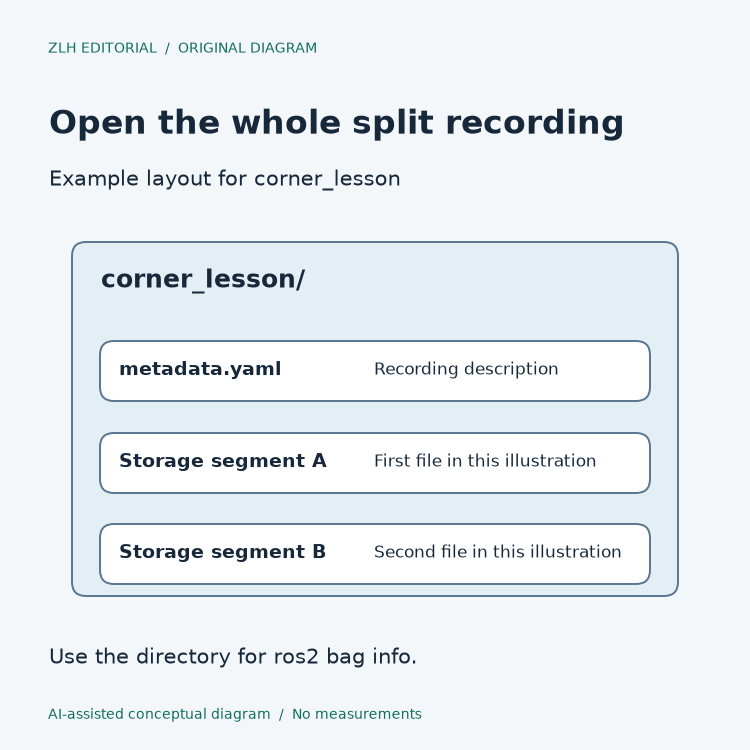
Keep the metadata file and every listed storage file together when sharing the recording. Name the top-level directory in the handoff note. A single file can be a valid player input, but someone opening only that file is selecting a narrower input than the directory. If your class needs to study one segment on its own, make that intent explicit when you hand it over. The distinction matters more than the suffix on a storage file.
For a useful comparison, repeat the maneuver using a new directory name and omit the duration option. Leave the size option unset in both runs. The question is whether the same recording procedure yields a different number of storage files when only the split setting changes. Treat the observed counts as values for those two sessions. The time at which you start moving the turtle can change the recorded interval. The read-only bag metadata lesson covers how to describe a prepared recording. Here the learner controls the split setting and examines the resulting file boundary.
Use the command topic and pose topic for different checks
In the exercise, /turtle1/cmd_vel carries movement commands, while /turtle1/pose lets you inspect reported position and orientation. Before replaying, stop keyboard teleoperation so it does not publish a second command stream to the same exercise. Start from a fresh simulator session if you want to compare the movement against a known initial setup. Play the directory with ros2 bag play corner_lesson. Watch the exercise and compare the stored topic names and counts with what you expected to record. The official tutorial notes that small timing changes can affect the exact path the turtle follows.
A pose stream can also be inspected as recorded data without using the new path as an exact replay comparison. Keep the two observations separate in the class notes. The guide to ROS logs and recorded messages explains why the recorder terminal output and the topic streams belong in separate attachments. The recorder log can help explain the run setup while the storage files carry the messages selected for the exercise.

Make the handoff repeatable
Write down the Jazzy environment, command line, name of the directory, storage format reported by the tool, and topic list. Ask a classmate to run the info command on their copy before running playback. If a topic is missing, return to the recorder terminal and inspect its subscription messages. If a storage file is missing, compare the metadata and directory contents against the handoff copy. Each check starts from different evidence, so replacing one check with the other can waste a classroom session.
For future updates to the exercise environment, keep the version reference alongside the recording. The industry news archive provides a place to follow software updates. The industry analysis section collects context for applying the tools to robotics work. For this lesson, the concrete handoff is a complete directory that another learner can identify, inspect, and open with the supplied commands.